Categories
Algo Trading

Can You Do Algo Trading in Zerodha?

Algo trading has become increasingly popular among many who seek to gain an edge in the stock market. As technology advances, many Indians are exploring the possibilities of automating their trading strategies to capitalise on market trends with high precision and speed. But have you wondered if you could do algo trading in Zerodha, one of the leading brokers in India? In this article, we’ll explore that very question!

What is Algo Trading?

Algo trading is a method of executing orders in the financial markets (stocks, derivatives-F&O, currencies, commodities, etc.) using automated or pre-programmed trading instructions. The ‘algorithm’ places orders based on specific rules and criteria, including price, timing, and quantity instructions. The trading algorithm follows the instructions to identify opportunities in the market and executes orders when the conditions are satisfied.

‘Algos’ can analyse market or trading data, track performance, and execute trades based on pre-set trading strategies without human intervention!

Here’s an example: Suppose a trader has a strategy to buy when a stock price surpasses its 50-day moving average and sell when it falls below. An algorithm can monitor the stock and execute these trades at lightning speed, saving considerable time and effort. This makes algo trading attractive to those interested in executing trades quickly or simply eliminating the emotional biases of manual trading.

Can You Do Algo Trading in Zerodha?

Zerodha is a leading brokerage firm known for its affordable and user-friendly platform for investing and trading. Established in 2010, they pioneered the discount brokerage model in India, offering a flat fee of ₹20 per executed order across various trading segments. This reduced the cost of trading compared to traditional brokers who charged a percentage of the trade value! Zerodha allows you to trade in stocks, derivatives, commodities, and currencies through its flagship platform, Kite.

Since 2019-20, there’s been a notable rise in retail traders engaging in algo trading in India. This growth is mainly driven by brokers and algo trading platforms offering Application Programming Interfaces (APIs) to help retail traders easily implement their trading strategies or execute trades. An API is essentially a set of tools and protocols that allow software to interact with brokers, trading platforms, and exchanges/data vendors to place orders automatically.


Here are two ways you can do algo trading in Zerodha:

1. Kite Connect

If you have basic coding or technical trading knowledge and are interested in algo trading, you can use Zerodha’s Kite Connect API to: 

  • Get Market Data: You can access historical price and volume data through Kite API. You can also get live market data to track price movements across asset classes like equities, derivatives (F&O), currencies, and commodities.
  • Place Orders: Kite Connect API helps you code your own trading strategies, use real-time data to create buy or sell signals, and have them executed directly on Kite through APIs. You can start by setting up your strategy and then let live market data trigger your signals automatically. As your strategies run, the API keeps you updated so you can monitor performance and adjust based on market changes—all in real time.

The monthly subscription for Kite Connect API is ₹2,000 per app, with an additional ₹2000 for historical data access. You will need to familiarise yourself with various endpoints available in the Kite Connect API documentation, such as placing orders, retrieving market data, and managing your portfolio.

2. Streak

Zerodha Streak is a user-friendly platform designed for beginner traders/investors, allowing you to create, backtest, and deploy trading strategies without any prior coding knowledge. With Streak, you can:

  • Create Trading Strategies: You can create custom trading strategies (primarily on equities only) using technical indicators or scanners and set specific conditions based on market movements. You can also explore certain pre-defined strategies on Streak.
  • Backtest Strategies: Streak allows you to backtest equity trading strategies against historical data to evaluate their performance before deploying them in live markets. 
  • Deploy Strategies: Once your trading strategy is tested and refined, users can deploy it virtually (paper trading).

Streak does not offer automatic order placement services for equities, derivatives (futures/options) or other securities. It provides one-click actionable notifications whenever your set trading conditions are met, allowing you to quickly place orders with ease. When you receive a strategy notification, simply click to open the pre-filled order window, which includes all necessary details such as price and quantity. Just confirm by clicking buy or sell to execute the trade. This additional confirmation step ensures compliance with trading regulations.

Streak is exclusively free for all Zerodha users. You can deploy up to 5 live strategies (including Scanners and Strategies) and up to 15 virtual strategies at a time. Streak allows you to run unlimited backtests on equities and manually added options contracts, while dynamic options contracts are limited to 50 backtests per day.

Be Cautious!

Several third-party algo trading platforms in India integrate with Kite API without Zerodha’s endorsement or oversight. Some of these platforms even claim partnerships with Zerodha without their permission, using its name to promote their products and occasionally making exaggerated promises of guaranteed profits! Zerodha has time and again mentioned that it is actively working to prevent these platforms from misusing its brand and protect customers from being misled. Always do your own research and due diligence before signing up to such third-party platforms for algo trading!

SEBI’s Stand on Algo Trading in India

The Securities and Exchange Board of India (SEBI) has introduced several measures to regulate algo trading, but only for big institutions (brokerage firms, banks, investment firms, etc.). There are no specific laws surrounding algo trading for retail traders in our country. However, SEBI is concerned about the impact of algo trading on market stability, especially due to the increasing popularity of unregulated platforms that promote “off-the-shelf” algorithms with often misleading claims of high returns. Meanwhile, brokers like Zerodha are asked not to associate directly or indirectly with any algo trading platform claiming historical returns for their strategies.

In 2021, SEBI proposed a solution to classify every API-based order as an “algo order”. This would require brokers to get exchange approval for every strategy used through APIs and confirm each order’s connection to the approved strategy—a very complicated and lengthy process. This approach could likely force brokers to stop offering APIs altogether!

In one of his
blogs, Zerodha’s co-founder, Nithin Kamath, said they support SEBI’s protective measures. However, the company suggested a different approach: directly regulating algo trading platforms under the RIA (Registered Investment Adviser) or RA (Research Analyst) frameworks.

Conclusion

Algo trading is possible in Zerodha through Kite Connect API and Streak, though with major limitations since it operates within regulatory boundaries that prioritise the protection of market participants. Zerodha’s Kite API is designed for tech-savvy users who seek data access for analysis, manual signal generation, and backtesting. And Streak can be helpful for beginner traders who wish to do algo trading on stocks.

You should always approach algo trading with a clear understanding of the risks and be cautious of platforms that promise easy or guaranteed profits!

FAQs:

1. Can I do fully automated algo trading in Zerodha?

No, Zerodha does not allow fully automated algo trading where orders are placed automatically without user intervention. While the platform’s Kite Connect API allows traders to create and execute strategies, order placement must comply with regulatory guidelines. Streak, another platform by Zerodha, allows strategy creation and backtesting but requires users to confirm trade execution manually.

2. What is the cost of using Zerodha’s Kite Connect API for algo trading?

Zerodha’s Kite Connect API subscription costs ₹2,000 per month per app. If you require historical market data, an additional ₹2,000 per month is charged. This API is designed for traders with coding knowledge who want to build and automate their trading strategies within regulatory limits.

3. Is algo trading regulated by SEBI for retail traders?

Currently, SEBI does not have specific regulations for retail traders using algo trading. However, the market regulator has expressed concerns over unregulated algo trading platforms and proposed stricter oversight of API-based trading. Zerodha follows regulatory guidelines and does not support fully automated execution of trades without manual confirmation.

Categories
Jargons

How to Buy and Sell Stocks? [Demo]

Whether you’re a seasoned investor or a curious newbie, navigating the world of buying and selling stocks can feel like deciphering an ancient code. But fear not! Our comprehensive guide offers step-by-step instructions and expert tips to help you buy and sell stocks.

For this tutorial, we will be using Zerodha’s mobile app— Kite. 

How to Buy a Stock?

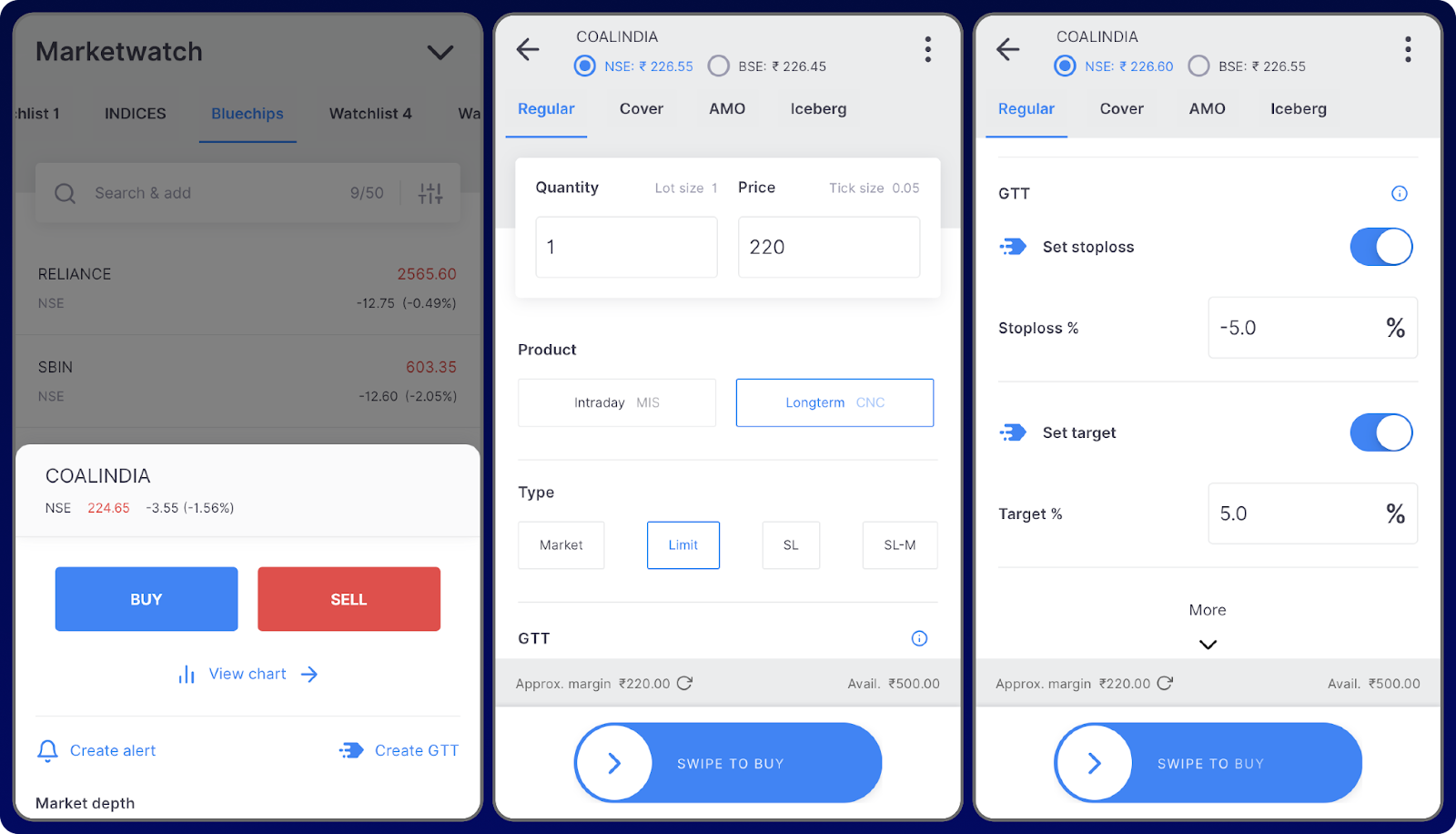
buy and sell stocks in Zerodha | marketfeed

Step 1: Add the stock to your watchlist

Once you perform the necessary analysis, add stocks you want to buy to a watchlist.

Step 2: Invoke the order placement window

Click on the name of the stock you want to buy and press the buy button to invoke the order placement window.

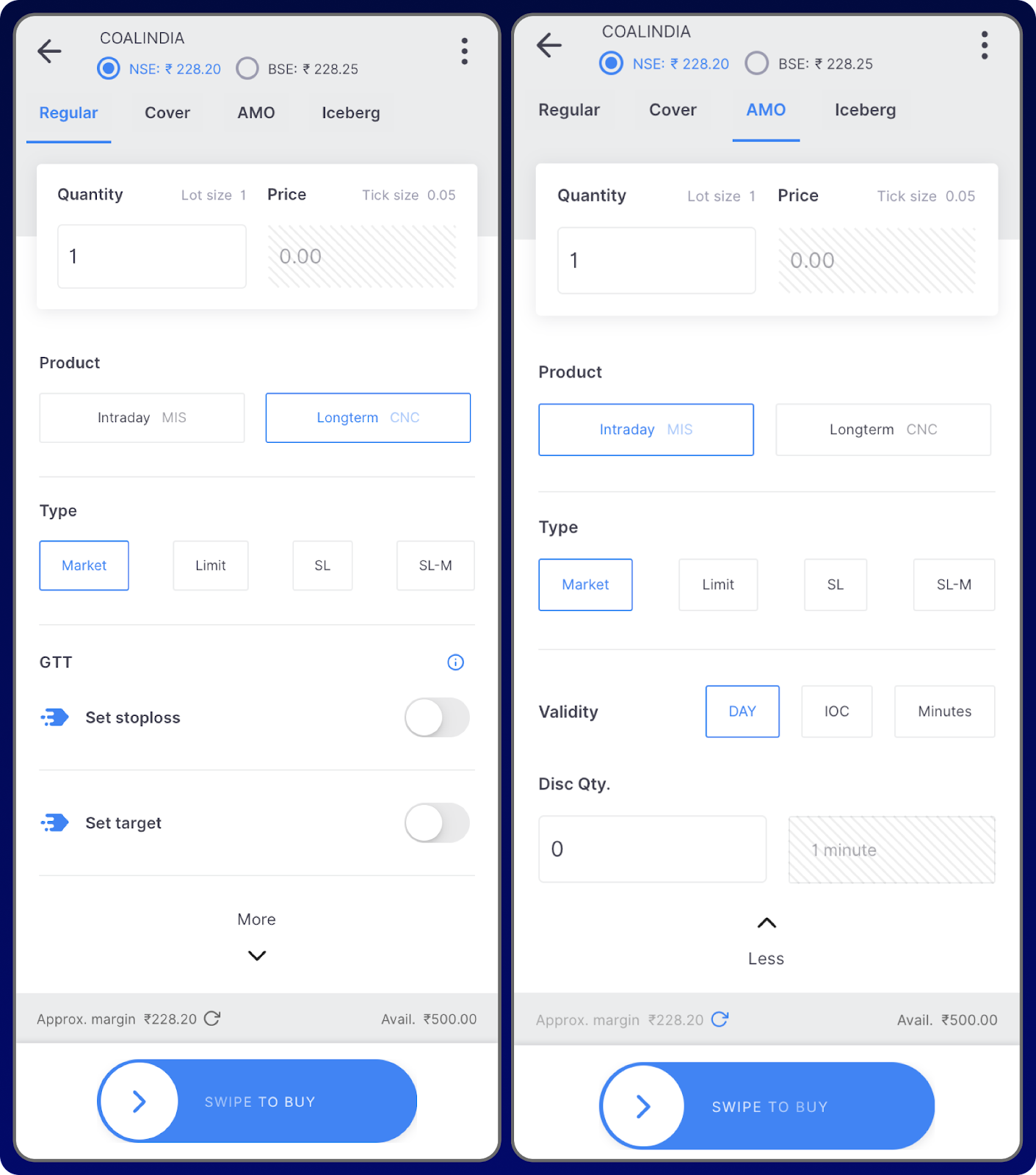
Step 3: Select the order mode

Use regular orders for now.

Step 4: Input the quantity

Enter the quantity of the stock that you want to buy.

Step 5: Select the product type

Select Longterm or CNC (Cash and Carry) product type to take delivery of the stock to your Demat account. Use MIS (Margin Intraday Square-off) for intraday order placements.

Step 6: Select the order type

To make things simple, we will select market order.

Step 7: Enter the limit price 

Skip this step if you have selected a market order. Enter the price at which you want to buy the stock if you choose a limit order.

Step 8: Set GTT orders if required

Place a GTT stop loss and target order if needed.

GTT in Zerodha stands for “Good Till Triggered.” It is a feature that allows users to place an order that stays active until the trigger condition is met. The validity of the trigger is one year, and an account can have a maximum of 250 active GTTs simultaneously. GTT orders can be placed for buying or selling stocks, and they are triggered and placed only during market hours. 

Step 9: Input the order validity instructions

Select day order.

Step 10: Swipe!

Swipe on the ‘Swipe to Buy’ button to place the order. The order will be immediately executed if you have placed a market order. Limit and stop-loss orders will be executed once the conditions are met.

Once the order is executed, it will show up on the positions tab under ‘Portfolio’. It will move to the holdings tab the next day. The sign “T1” will be shown beside the stock on the next day and will disappear on the third day.

How to Sell a Stock?

Follow the below steps to sell stock from your holdings:

Step 1: Invoke the order placement window

Click on the name of the stock you want to sell from your holdings and click on “Exit” to invoke the order placement window.

Step 2: Select the order mode

Use a regular order.

Step 3: Input the quantity

Enter the quantity of the stock you want to sell from your holdings.

Step 4: Select the product type

Select Longterm or CNC (Cash and Carry) product type.

Step 5: Select the order type

We will select market order for the sake of simplicity.

Step 7: Enter the Limit Price 

Skip this step if you have selected a market order. Enter the price at which you want to sell the stock if you choose a limit order.

Step 8: Input the order validity instructions

Select day order.

Step 9: Swipe

Swipe on the ‘Swipe to Sell’ button to place the order. 

Step 10: Authorise the transaction

CDSL TPIN is a mandatory process required for performing sell transactions online. Click on the “Continue” option. You will be redirected to CDSL’s page, where you are prompted to enter a TPIN. Next, enter the OTP you received and click on “Verify” to complete the authorization process.

Since you have a new account, you will have to generate a new TPIN by following the instructions on the screen. You will receive the TPIN via text message and email, which you should save for future transactions.

The TPIN has to be reentered every day to conduct transactions. You can pre-authorize it by using the “Authorization” option in holdings before the markets open every day.

Step 11: Swipe, again!

Once authorization is completed, swipe the ‘Swipe to Sell’ button to place the sell order.

The order will be immediately executed if you have placed a market order. Limit and stop-loss orders will be executed once the conditions are met.

What is TPIN & How to Skip it?

CDSL is a depository, and it has created a security measure called TPIN Authorization to ensure that the broker doesn’t misuse your holdings. TPIN is a crucial component of the stock trading process. It comes in the form of a six-digit passcode that must be entered to authorise the broker to sell selected stocks from your Demat account. The CDSL TPIN security mechanism enables investors to easily authorize any account-related action online. 

Giving a Power of Attorney (PoA) to your broker is the only way to skip this step. Power of Attorney (POA) is a document that gives the stockbroker authorization to debit your shares from your Demat account whenever you sell your holdings. If your POA is mapped to your Zerodha account, you will be able to sell your holdings without a prompt asking you to authorize transactions using TPIN.

To give a POA, go to Zerodha’s website and download the POA form. Fill it up and physically mail it to Zerodha’s office.

In conclusion, buying and selling stocks is a very simple process. However, you have to be focused while placing orders to avoid mistakes that could lead to losses!

Categories
Jargons

Broker’s Terminal and Different Order Types Explained (Zerodha)

Let’s learn how to navigate a broker terminal, explore the various features it offers, learn the different types of orders available, how to fund your account, and finally how to buy & sell a stock. 

For this tutorial, we will be using Zerodha’s mobile app— Kite. We recommend you add some funds to your trading account and follow this tutorial so that you can gain first-hand experience with the broker’s trading terminal.

Understanding the Broker’s Terminal

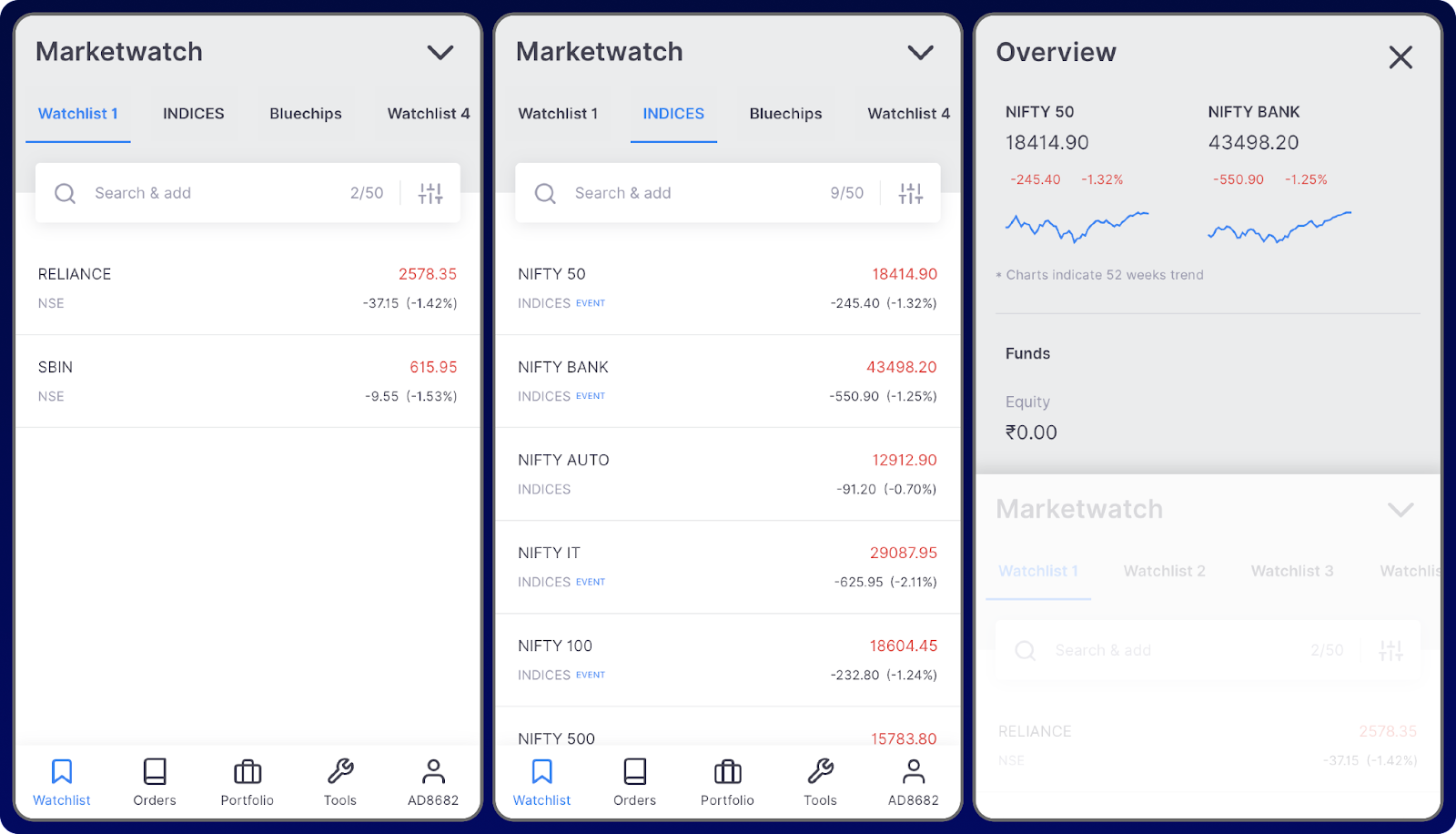
When you first log in to your account on Zerodha’s Kite app, you will be greeted with the watchlist tab by default. The app has five main tabs. The top left corner of the app displays the name of each tab.

1. Watchlist & Overview

The watchlist tab contains a list of securities to which you can add stocks and other financial instruments and monitor them for potential trading and investing opportunities. You can customize up to seven watchlists based on your needs. The dropdown arrow in the top left of this tab brings down the overview feature, which shows brief data on the prices of NIFTY50 & BankNifty and the funds in your account.

Zerodha Watchlist | marketfeed

How to Add a Stock to Your Watchlist?

1. Select any watchlist from the tab
2. Click on search & add 
3. Type the name of a stock. eg: Reliance 
4. Click on the + icon parallel to the stock name
5. Click on < arrow on the top left
6. The watchlist will display the stock you selected

To add stocks to other watchlists, click on any of the watchlists from the top panel and repeat the steps. You can add up to 50 stocks to a watchlist.

How to Rename a Watchlist?

1. Click and hold on the name of the watchlist you want to change

2. Click on the edit icon 

3. Type the new name

4. Click on save, and your watchlist will be renamed

How to Remove Stocks From the Watchlist?

1. Click and hold on the watchlist name

2. Click on the delete icon parallel to the stock that you want to delete

3. Click on save

How to Reorder Stocks in Your Watchlist?

1. Click and hold on the name of the watchlist

2. Click on the dots to the left of the stock’s name, and drag up or down to change the order

3. Click on save

How to Filter & Sort Your Watchlist?

1. Click on the configure icon to the right of the search bar
2. Under the filter section, select or unselect NSE & BSE to filter your watchlist according to the stock exchange
3. Under the sort section, there are three parameters:

  • A-Z Alphabetically – Sorts the watchlist in alphabetical order
  • % Change – Sorts the watchlist on % change in price
  • LTP – Sorts the watchlist in ascending or descending order of LTP

2. Orders

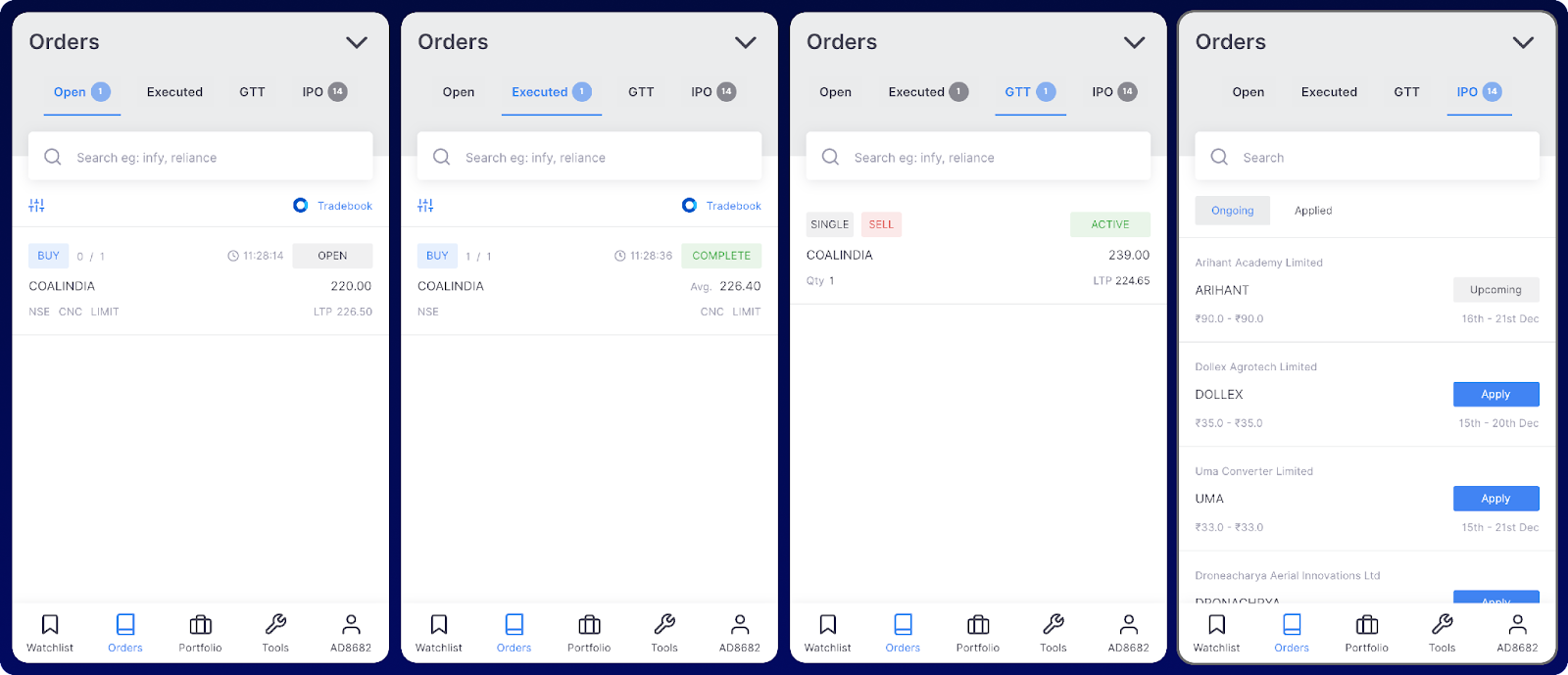
An order is an instruction given to the broker to buy or sell a stock. There are 4 subtabs in the orders tab:

broker order types | marketfeed

1. Open: When you place an order, it will be shown here until the order gets executed

2. Executed: Once the order is executed and the stock is bought, it will be shown in the executed tab.

The details in open and executed tabs are only valid for a day and clear themselves on the next day.

3. GTT: GTT stands for Good Till Triggered. This tab shows all the GTT orders placed with the broker. We will learn about GTT in the coming sections.

4. IPO: This section contains details about ongoing IPOs and applied ones will be shown here.

3. Portfolio

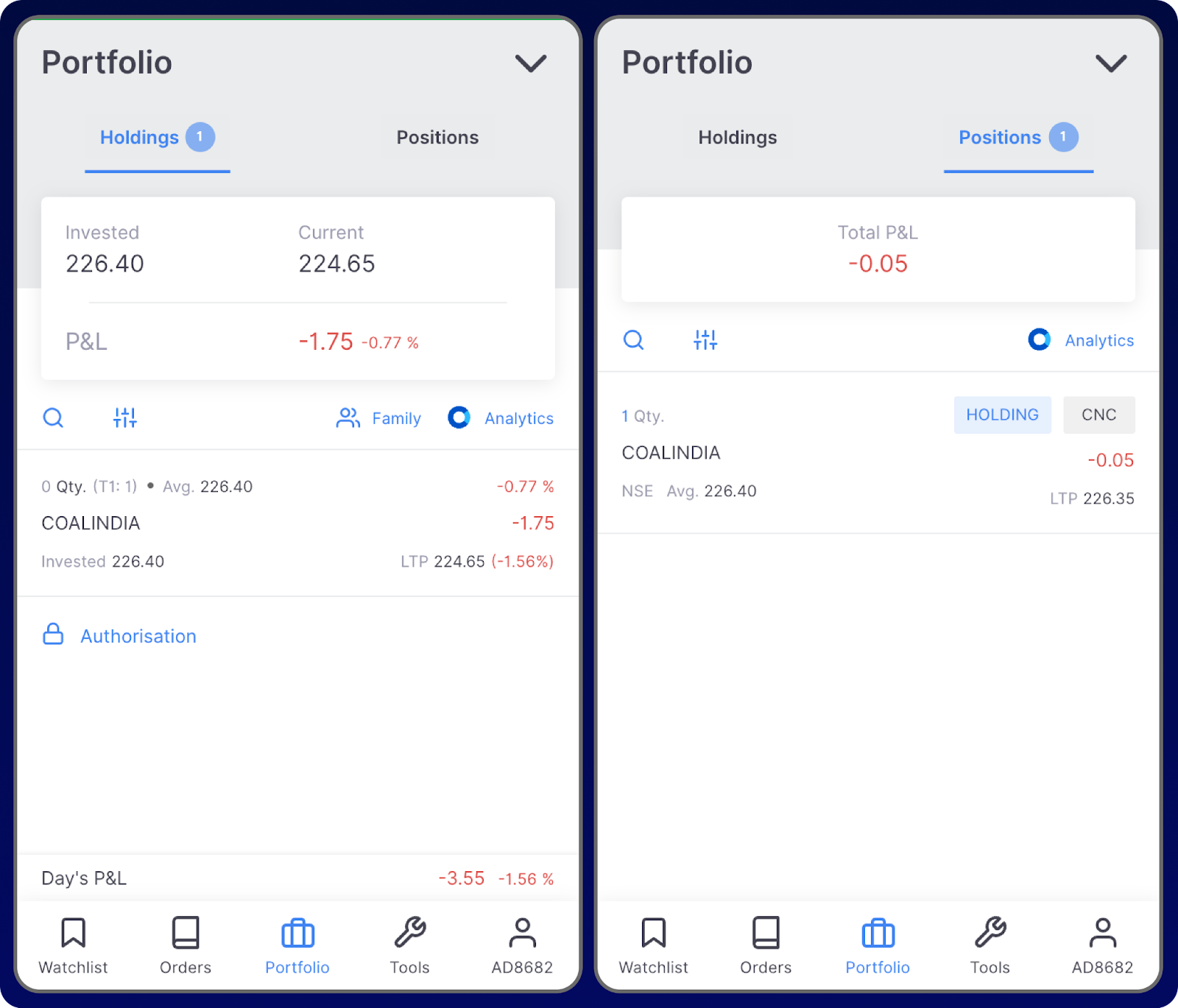
There are two subtabs in the portfolio tab:

Portfolio Zerodha | marketfeed

1. Holdings

This tab displays all the stocks that are in your Demat account. The feature not only presents a summary of the holdings, including the invested amount, current value, and returns generated but also provides details about each individual stock holding.

  • T1 mark near a stock means that it is a T1 holding. T1 will disappear the next day.
  • Day’s P&L shows the changes in the profit or loss of the holdings on any given day.

2. Positions

This tab shows all the trades/investments that you took on that particular day. 

When you buy a stock, it will be shown in the positions tab on that day and will be shown in the holdings tab the next day.

4. Tools

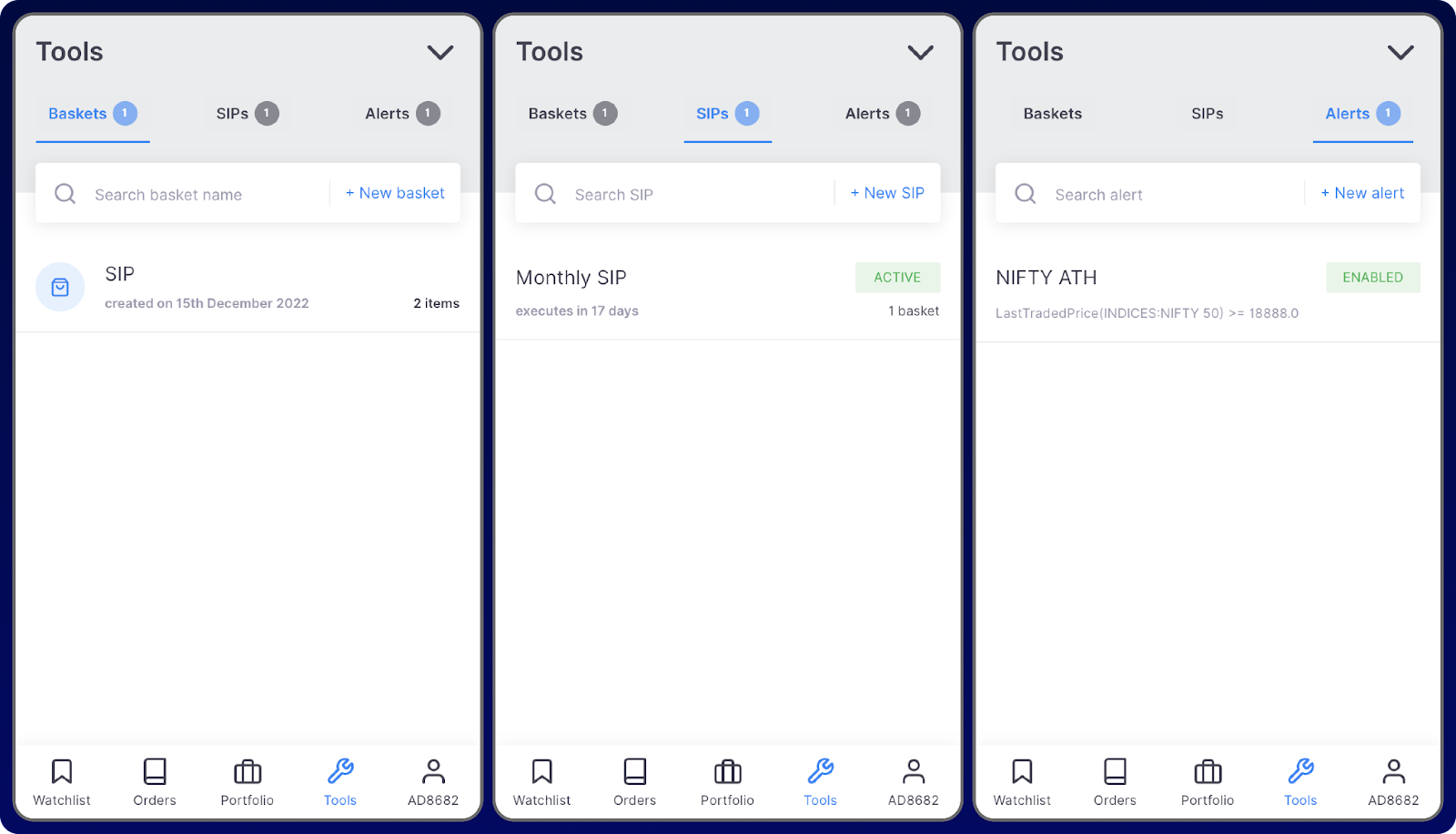
There are 3 subtabs in the tools tab:

Tools Zerodha | marketfeed

1. Baskets

A basket is a feature that allows you to buy a group or portfolio of stocks rather than buying them individually.

2. SIPs

Systematic Investment Plans (SIPs) allow you to invest a certain amount of money into stocks and other securities at regular intervals. Once you create a basket, a SIP can be done on a particular basket.

3. Alerts

This feature allows you to create alerts on stock prices so that you don’t need to monitor them constantly.

5. Profile

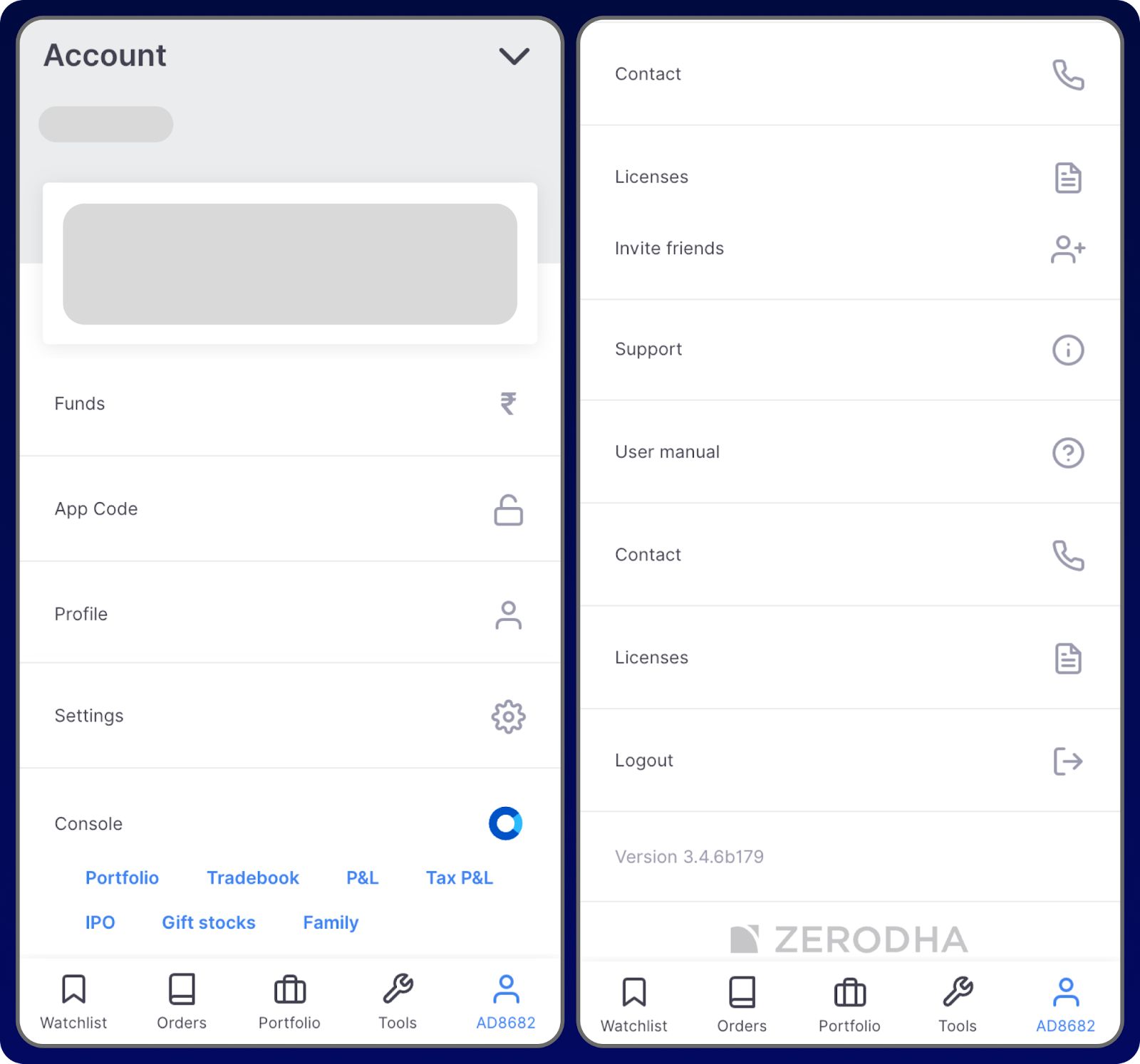
This tab shows all the account settings and profile information: 

Profile | marketfeed
  • Funds – This section is where you deposit and withdraw funds into your trading account.
  • App Code – It displays the code to log in to Kite web.
  • Profile –  Shows all your profile information such as your name, client code, email, phone number, etc
  • Settings – This option allows you to change various settings within the app.
  • Console – Console is the back office of your Zerodha account.
    • Portfolio option shows a detailed view and breakdown of your holdings.
    • Tradebook shows all the trades you have taken on any particular day or range of days.
    • P&L shows the total amount of money you gained or lost in a particular period.
    • Tax P&L displays all the documents required to file tax returns with the Income Tax Department. 
    • IPO displays all the current and upcoming initial public offerings (IPOs). You can also apply for IPOs via Zerodha.
    • Gift Stocks is a feature that allows you to gift stocks to other Zerodha users.
    • Family allows you to add up to 10 family member portfolios (Zerodha accounts) and track the consolidated portfolio through one account. Only viewing and tracking are allowed after explicit authorization from the family member’s account.

Apart from these five tabs, there is an overview section in the app that displays two indices, NIFTY and BANKNIFTY, by default. It also shows the funds available in your account to trade. You can access the overview section from the dropdown pin on the top right corner of the screen and is accessible from any tab in the app.

Features in the Order Placement Window

Order Placement Window | marketfeed

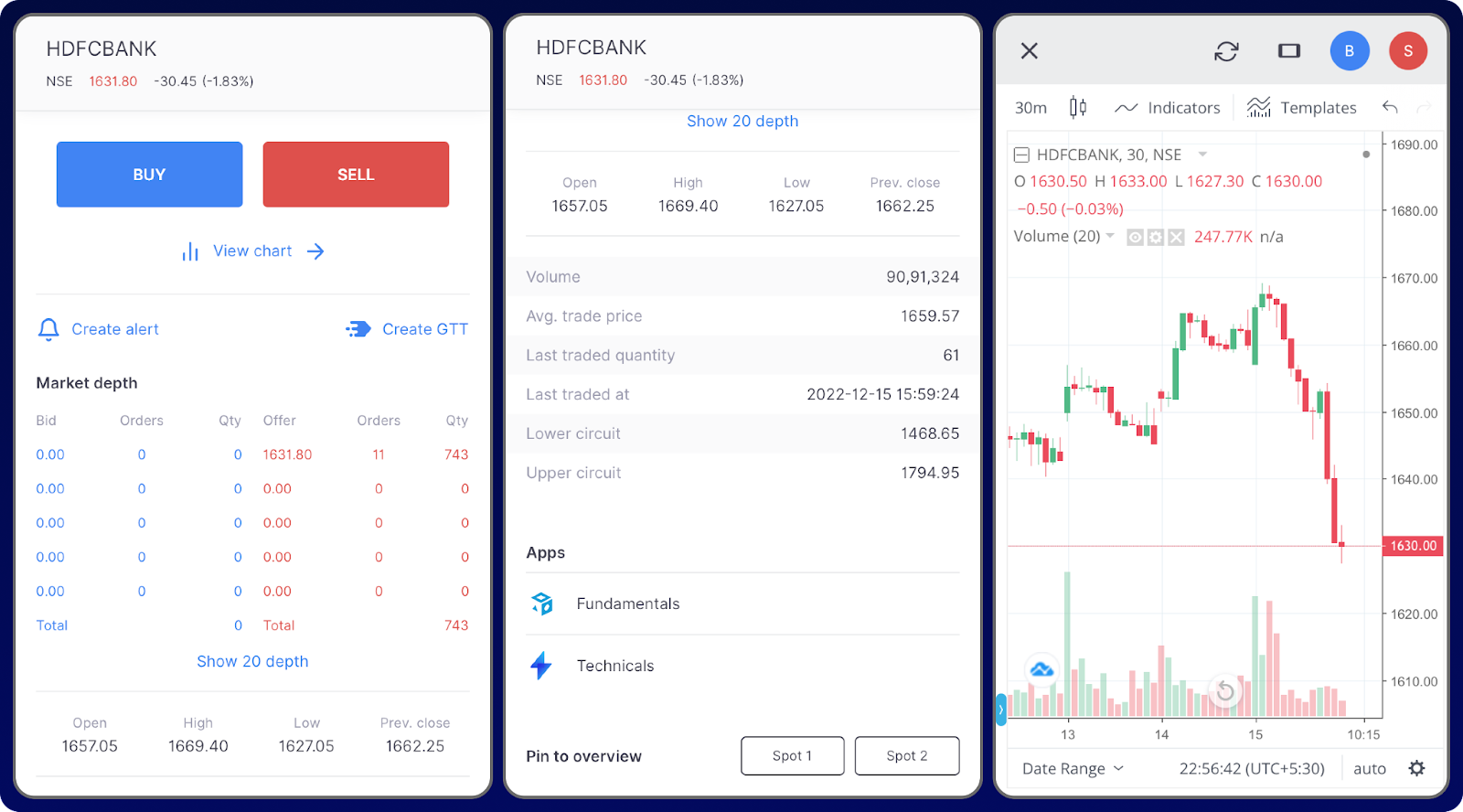
Invoke the order placement window by clicking on any scrip and pulling it up.

1. On the top of the window, the details of the scrips such as the name of the listed exchange, LTP, and price change are displayed.

2. A buy and sell button follows, which you can click to place an order.

3. Option to view the price chart of the scrip. We will learn about charts in the upcoming modules.

4. Option to set a price alert on the stock.

5. Option to create a GTT order for the stock.

6. Market depth is a real-time list displaying the bids and offers for the stock. Buyers place orders called bids, and sellers place orders called offers. It displays the top five bids and offers including their quantity, price, and orders. 

7. Shows Open, High, Low, & Previous Close

  • Open represents the price at which the stock opened today.
  • High represents the highest price the stock traded at.
  • Low represents the lowest price the stock traded at.
  • The previous close shows the closing price of the previous day.

8. Various data such as volume, average trade price, last traded quantity, and last traded at are shown along with the lower circuit and upper circuit. We will discuss what upper and lower circuits are in the upcoming modules.

9. The fundamentals and technicals of the stock can also be viewed in detail.

Types of Orders

You can either place a buy order or a sell order. A buy order instructs the broker to buy a stock and a sell order instructs the broker to sell a stock. There are Regular orders, Cover orders, AMO orders, and iceberg orders for buy and sell. 

What are Regular, Cover, AMO & Iceberg Orders?

These are different types of buy and sell orders. 

  • Regular orders are normal orders that we place to make trades.
  • A Cover Order (CO) is an order with an in-built risk mitigation mechanism. Simply put, a cover order is a market order or limit order that is placed along with a stop loss order. 
  • An AMO order (After Market Order) allows you to place orders for the next trading day This is especially helpful for people who can’t actively track the markets during the live session – 9:15 am to 3:30 pm. AMO orders are allowed for all product types (CNC/MIS/NRML) except for CO.
  • An Iceberg is an order type that slices orders of larger quantity (or value) into smaller orders, where each small order, or leg, is sent to the exchange only after the previous order is filled. This is only used for orders with huge volumes.

Both buy and sell orders have the following order types, execution, and validity instructions.

Product

  • Intraday – This order is placed for taking intraday trades. This is how we tell our broker upfront that we will be taking an intraday trade and will exit it on the same day before the market closes.
  • Longterm – This order is placed for taking delivery of stocks. We place a long-term (CNC) order when we want to buy and hold stocks for the long term.

Execution Instructions

  • Market Order – To buy a stock at the current market price.
  • Limit Order – To buy a stock at a specific price. If the limit price is below the current market price, it will effectively act as a market order, and the order will be immediately executed.
  • Stop-loss order (SL) – To buy a stock above the current market price. Set the trigger price, the price above which you want to buy the stock. Also, set the limit price, the price at which you want to buy the stock when the price reaches the trigger price.

    Eg: Suppose the current market price of a stock is ₹98 and you want to buy the stock at ₹102 only when the price crosses ₹100. Then place an SL order with a trigger at ₹100 and a limit price of ₹102.
  • Stop-loss Market order (SL-M) – This is a type of SL order in which the stock will be bought at the current market price when the price is triggered. Only a trigger price has to be entered.

Validity Instructions

  • Day Order – The order will be valid till the end of the day if the day order is placed, which means that it will be open until the end of the day.
  • Good-Till-Triggered – A GTT order will be valid for one year. If the order is not executed today, it will be open for 1 year.
  • Immediate or Cancel Orders – The order if not executed right after placing, will be canceled.

How to Add Funds to Your Account?

You can fund your account using various payment methods including UPI and net banking. There will be zero charges if you fund your account via UPI.

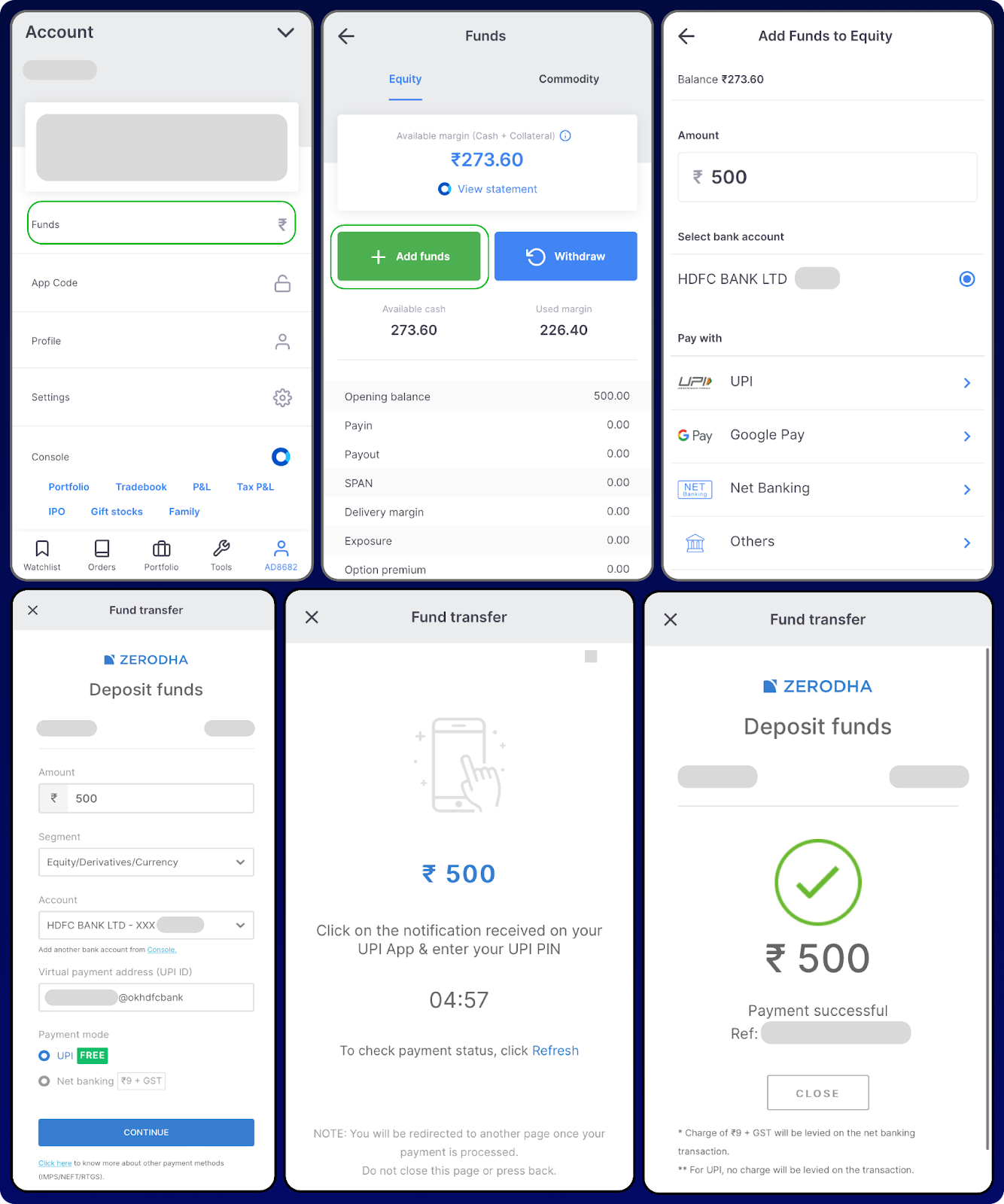
Here are the steps to add funds to your account:

1: Go to Profile and Click on Funds

2: Click on Add funds

3: Enter the amount that you want to deposit

4: Select the payment method

  We will select UPI as the payment method here.

4: Complete the payment

  Voila! You’re done.

You’ve now learnt how to navigate the broker’s app and the different types of orders and their use cases in this chapter. We also discussed the steps to add funds!

Categories
Editorial

How to Add Nominee to Your Demat Account – marketfeed

Adding a nominee to your Demat account is now mandatory! If you do not add a nominee by March 31, 2023, your Demat or trading account will get frozen. You won’t be able to make investments or place trades!

So let’s see how to add a nominee for major brokers like Zerodha, Fyers, IIFL, Upstox, Angel One & Groww!

⚠️ You can choose to opt out of this entire process. But you’ll have to submit a no-nomination form with your broker.

How to Add a Nominee on Zerodha?

1. Log in to https://console.zerodha.com/account/nominee

2. Click on “Add Nominee” (up to 3 nominees can be added).

3. Enter the nominee details and upload an ID proof. You can also specify how your holdings/funds will be distributed to the nominees.

4. Click on “Continue”.

5. Click on Proceed to e-sign.

6. Click on Sign Now.

7. Accept the terms and conditions, enter the Aadhaar number of the account holder, and click on Send OTP.

8. Enter the OTP and click on Verify OTP.

How to Add Nominee on Fyers?

1. Go to https://myaccount.fyers.in/Nominations

3. Select the option ‘I wish to nominate’ (Select I do not wish to nominate to opt out).

4. Enter the required Nominee details and click on ‘Submit.’

5. Complete Aadhaar E-sign in the Digio pop-up. (Click on allow pop-up if asked).

How to Add Nominee on IIFL?

1. Log in to https://ttweb.indiainfoline.com/Trade/ClientProfileDetailed.aspx

2. Click on “Nominee Details”

3. Add all the necessary details and click “Proceed to E-sign”

4. Complete verification with Aadhaar OTP.

How to Add a Nominee on Upstox?

1. Log in to https://account.upstox.com/nominee

2. Click on “Add Nominee” and enter all details.

3. Click on ‘Proceed for E-Sign’ and enter your Aadhar number.

4. Next, enter the OTP received on the mobile number linked with Aadhar and complete the process.

How to Add a Nominee on Angel One?

1. Log in to Angel One’s web platform.

2. Find the dropdown menu on the right-hand side, next to your Client ID. Click on “My Profile” to find the “Add-Nominee” option.

3. Click on ‘Add Nominee’ and add details like name, date of birth, relationship, PAN and allocation %.

4. Click on ‘Proceed for E-Sign’ and enter your Aadhar number.

5. Next, enter the OTP received on the mobile number linked with Aadhar and complete the process.

How to Add Nominee on Groww?

1. Go to https://groww.in/user/profile/nominee-details

2. On the ‘Add Nominee’ page, enter the nominee’s details as required.

3. Click on ‘Finish with Aadhar E-Sign’. Please make sure you Sign using your own Aadhaar number, and not the nominee’s Aadhaar number.

(You can add nominees online only once. Changing or adding new nominees requires an offline process).

Categories
Editorial

What is smallcase?

Here at marketfeed, we always promote the concept of long-term investments in the stock market. We believe that all individuals can achieve financial freedom by investing in fundamentally strong stocks over a long period. However, there are certain golden rules that one must follow to excel in this field. You must have a diversified portfolio, ie, own multiple stocks based on market segments and market capitalizations (small-cap, mid-cap, and large-cap). One must also start a Systematic Investment Plan (SIP), through which you can invest small amounts of money into stocks at regular intervals (usually every month). By investing passively, you will be able to gradually build your wealth.

In recent times, investing in the stock markets has become very easy and less time-consuming. Through a revolutionary platform called smallcase, one can easily invest their money in multiple stocks based on a well-defined idea or theme. In this article, learn more about smallcase and find out how it works.

What is smallcase?

smallcase is a simple investment platform that allows you to buy and sell stocks based on certain predefined combinations. It provides users with baskets of stocks (known as smallcases) that are based on certain ideas, strategies, or themes. This will be clear with the help of an example.

Suppose you believe in the idea that the future of mobility in India (and around the world) is electric. And, you wish to invest in those companies that would greatly benefit from the electric vehicle (EV) boom. If you want to passively invest in the stock market and do not have the necessary time to conduct a full-fledged analysis of the EV sector, you can simply select a smallcase known as ‘Electric Mobility’. This would include stocks of major battery manufacturers, auto components firms, power generation & transmission companies, automakers, etc. When you select this smallcase, your money gets invested in stocks of those companies that are expected to grow when there is growth in the EV space. 

As most of you are aware, stocks/equity has always delivered higher returns in the long run than other asset classes. Despite this, many people are still hesitant to invest in the stock market due to a variety of factors. The primary objective of smallcase is to help investors create a diversified portfolio of stocks for the long term so that their overall risks can be minimized. Owning multiple stocks will protect you from any rapid or unpredictable movement by a specific stock. The platform can be used by anyone who is looking to invest in Indian stocks or ETFs for the long term

How Does it Work?

You can easily access the smallcase mobile application or website using the credentials used for opening your broking account. [smallcase has partnered with almost all major brokerage platforms such as Zerodha, Upstox, IIFL Securities, 5paisa, etc] Once you are logged in, you can choose from a wide variety of smallcases that are based on different themes or strategies. smallcases are created and managed by professionals that are registered with the Securities and Exchange Board of India (SEBI). The companies (or stocks) included in all smallcases are thoroughly studied and analysed by these professionals. They would explain the reasoning behind the creation of the smallcase and specify the weightage of each stock. The Compounded Annual Growth Rate (CAGR) of every smallcase will be clearly mentioned.

For investing in a smallcase, funds will be used directly from your trading account (Kite, Upstox etc). smallcase is not connected to your bank account. One can either start a Systematic Investment Plan (SIP) or do a lump-sum investment (at one go). [The SIP amount would fluctuate based on market conditions.]

The amount that you have invested goes to different stocks, and you get direct delivery of those stocks in your Demat account. This means that you will have direct ownership of shares, just as in the case of buying individual stocks. The difference here is that with just one or two clicks, you are essentially placing orders for multiple stocks.

smallcase also gives you the option to add or remove stocks based on your own research. You can track the performance of each smallcase and analyse your portfolio. If there are dividends declared on any of the stocks in a smallcase, they will get credited to your bank account. There is no lock-in period, and you can exit a smallcase anytime. Since there is direct delivery of shares, you can sell or exit a particular stock of a smallcase from your brokerage platform whenever you want.

Rebalancing of Stocks in smallcase

The SEBI-registered professionals regularly review or monitor the stocks or ETFs of a smallcase. This is based on quarterly earnings and company news & updates. Most smallcases are rebalanced on a quarterly basis to ensure that the stocks included in them are the right choice for the underlying theme or strategy. If they feel that a stock is not performing up to expectations, they will remove it and add another one in its place.

When this rebalancing takes place, a notification will be sent to the users via email. You can review these changes and easily apply them through the platform. Thus, the stocks that got removed from the smallcase are sold, and the stocks which got added are bought.

Charges for smallcase

For all smallcases available on the platform, a one-time fee of Rs 100 + GST is applicable on the day of purchase. This amount is also applicable if you have created or customised a smallcase based on your own studies or preference. No extra charges will be applicable for further orders in the same smallcase.

  • Irrespective of the smallcase type, if you are investing less than Rs 4,000 on the date of purchase, you are charged only 2.5% of the amount invested + GST (18% on fees). That is, if you are investing Rs 2,000, then only Rs 50+GST will be charged instead of the standard Rs 100.
  • For the All Weather Investing and Smart Beta smallcases, there are no charges for buying and exit. However, there will be a fee of Rs. 50+GST that is applicable for any further order placed in these smallcases.

An important point to be noted is that all regular brokerage charges, taxes, or demat charges for buying and selling stocks will be applicable. (Kindly refer to all charges of your respective broking platforms before investing). On the day of purchasing a smallcase, these charges are automatically deducted from the funds in your trading/broking account. Any capital gains received from selling these shares will also be taxed as usual.

Conclusion

As you can see, smallcase is a very simple and relatively affordable platform that helps you stay invested in stocks (or direct equity) for the long term. The money that you wish to invest is spread across multiple stocks, which helps to minimise risks. All smallcases are explained in simple language, and you can easily track your investments. All Weather Investing and Top 100 Stocks are some of the most popular smallcases available at nominal rates.

The fact that smallcase is backed by brokerage firm Zerodha gives us a sense of safety and trust. At the same time, we would suggest our readers do their own research before investing in smallcases. One must always have a deep and proper understanding of how the market works. However, in the long run, platforms such as smallcase can definitely help you in your investment journey. 

You can learn more about the best investment options for beginners here. Explore smallcase. Also, you can check out some of the smallcases handpicked by our team here.

Happy Investing!